Enter an Inventory Adjustment Transaction
Select Parts Inventory Menu>>Processing>>Parts Transactions.
You will be asked if you would like to print all parts transactions you enter. Answer accordingly and press ENTER.
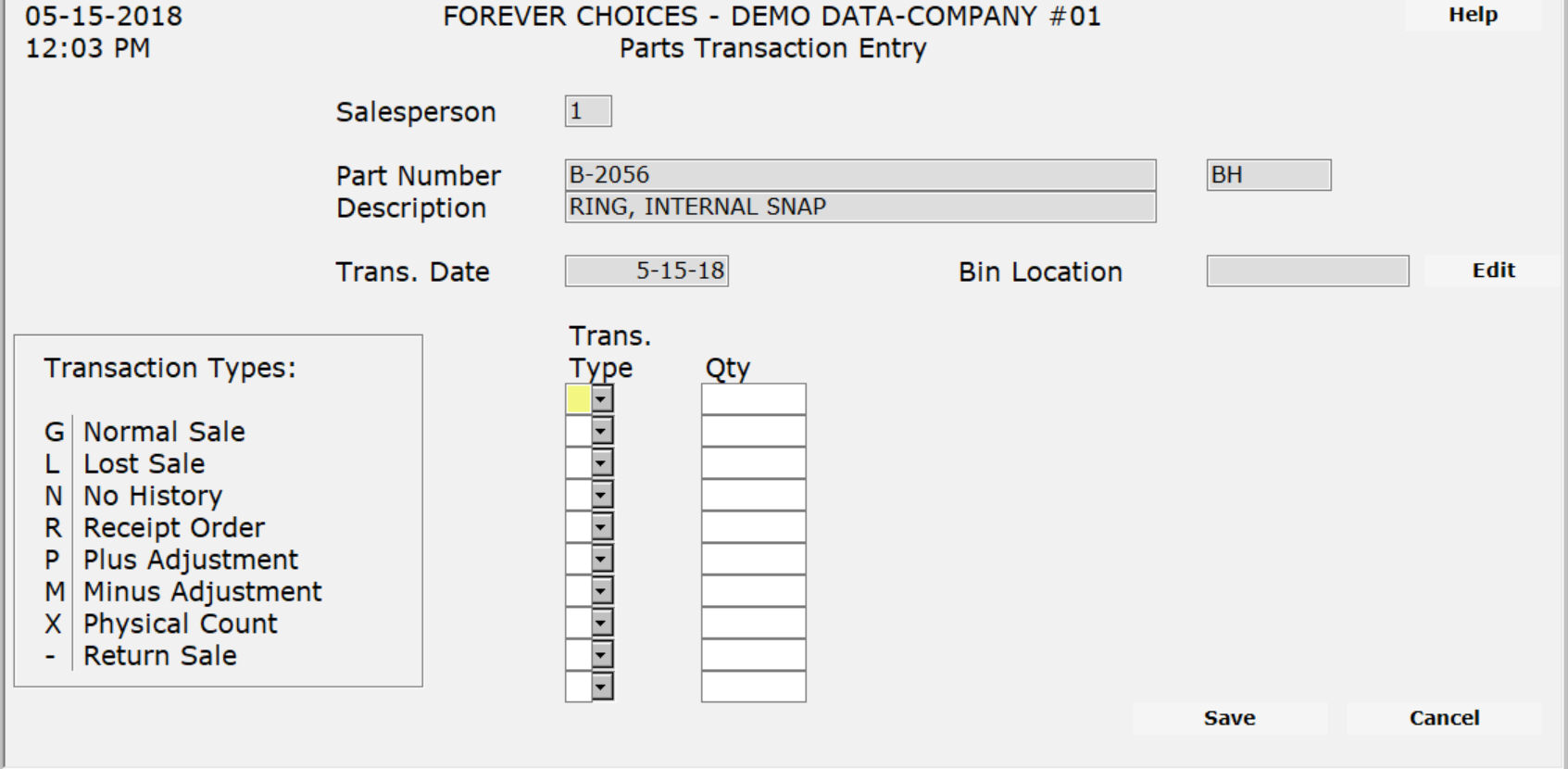
Complete this screen. (Click on a field name for an overview. An asterisk (*) denotes required fields.)
Confirm all entries are correct and press ENTER to continue.
You may make another entry or press F9 to return to the main menu.
Enter an Inventory Adjustment Transaction
Select Parts Inventory Menu>>Processing>>Parts Transactions.
Complete the Parts Transaction screen.
In the Transaction Type section enter one of the following:
You may make another entry or press F9 to return to the main menu.
Select Parts Inventory Menu>>Processing>>Parts Transactions.
Enter the Part Number that requires updating.
Enter the Transaction Date.
Press ENTER.
Complete the remainder of the screen.
Confirm all entries are correct and press ENTER to continue.
You may make another entry or press F9 to return to the main menu.